








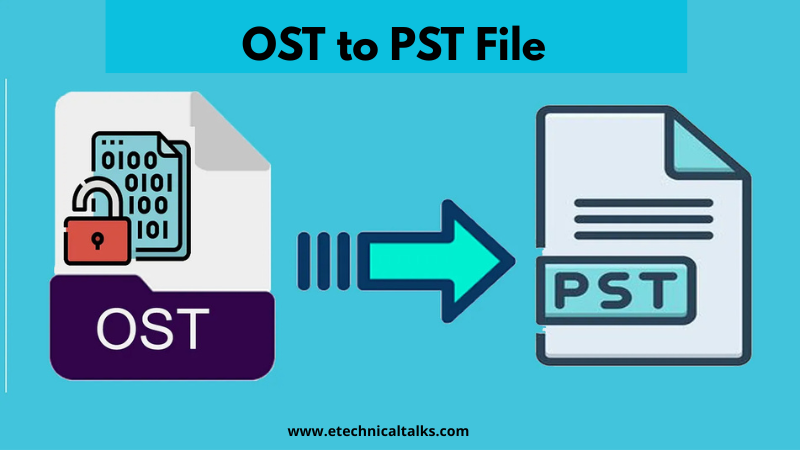

I want to change an OST file to a PST file format with email, calendar, notes, contacts, tasks, including all objects. But the difficulty arises “Can I change an OST file to a PST file?” I have no idea how I can achieve this conversion task of OST to PST. If you have any free or paid method to backup Outlook OST data into PST format with success result, then please suggest me ASAP.
In the digital era, most of the users are daily looking for a solution or method to convert data from one application to another or one file format to another. Nowadays, users want to use the best application for managing their all email data or personal data securely. On the other hand, users who are using OST file to store their all email or personal data. Now, they want to backup their OST data into PST format. Because users who are using OST file they have to face several different problems which are mentioned below:
Multiple Reasons to Backup OST in PST
- Corruption in OST file
- Hardware Failure
- Orphaned OST file
- Synchronization problem with Exchange Server
- Virus or malware attack
- Unexpected Outlook crash/termination
Three Different Methods to Change an OST File to a PST File
There are three ways available to change an OST file to a PST file for any Outlook edition like Outlook 2003, 2007, 2010, 2013, and 2016. You can choose any method according to your needs. Now, follow the step-by-step process for understanding can I change an OST file to a PST file.
Approach#1. Archiving
Outlook email application provides the feature to Archive data by transferring the OST folders to PST file format. The process can be finished in the following steps:
- Open MS Outlook application
- Hit on the “File” option and then select the option “Archive”
- Choose the folder(s) or file(s) that requires to be archived
- Choose destination location for Archive storage on computer
- Click on the “Finish”
Approach#2. Export/Import Wizard
Converting of OST data into PST file is probably the most accessible method and serves as one of the suitable OST Converter to PST options. To achieve the conversion process, follow the below describes steps:
- Launch Microsoft Outlook 2016, 2013, 2010, or previous edition
- Go to the “File” tab and select the option of “Import & Export”
- This will open “Import and Export Wizard”. Choose “Export to a File”
- Additional, choose Outlook data file (PST) format from the provided storage options
- Make sure to choose the checkboxes associated to “Include subfolders”
- Click on the “Finish”
As far as the Import and Export procedure is finished. Outlook will start moving all the components of OST file to PST unless a presenting password-protected PST is chosen.
- If the conversion is done to a presenting password-protected PST file then after appropriate password to the dialogue box that says Outlook data file password and press on the OK button.
- Alternatively, if you wish to give a password to PST file, type password in the Create Outlook data file box and then click on OK. Outlook data file password box will display, enter the password and then click OK.
Now, when mailbox data is available in PST format, it can be converted to migrate to new location in your system or external storage device.
Approach#3. Change an OST file to a PST File using OST to PST Converter
It is possible that your all attempt failed by following the above techniques. In that query you must opt the third-party tool – OST to PST Converter to easily backup your Outlook OST data to a PST file, as it the trusted solution to achieve the OST files conversion process in a single process. Try the software and backup data from OST folder to PST file.
To keeps integrity of data as well as to ensure security of all mailbox folders, moving to third-party approach is highly suggested over manual ways. OST to PST Converter is a perfect solution that helps to know “can I change an OST file to a PST file?” You can use free trial version of this software to check its efficiency while backup first 25 items from OST folder to a PST file without cost.
Read More – https://etechnicaltalks.com/technology/how-do-i-export-a-folder-from-outlook-complete-guide/